A Simple Data Migration Plan for Nonprofits & Social Work Agencies
Most agencies do not start with case management software. They start with a spreadsheet, then add a second tab, then a second file, then a shared drive full of intake forms and a folder of Word documents for case notes. It works until the caseload grows, a staff member leaves, or a funder asks where a client’s consent form lives.
Moving off spreadsheets can feel like a project that will swallow months. It does not have to. With a clear plan and a realistic scope, a small or mid-sized agency should be able to finish a clean migration in 14 days. (Of course, your manpower and how clean your data is can impact the timeframe in either direction.)
This guide walks through that plan phase by phase, along with the practices that keep your client data accurate from the first import to go-live.
Watch this video:
or
read the guide below.
Why should you move from Excel spreadsheets to case management software?
Spreadsheets are simple and easy to access, which is exactly why agencies rely on them. That same easy access creates problems for client records. Anyone with access can overwrite a cell. Copies pile up with names like “Clients_FINAL_v3.” There is often no history showing who changed what inside a spreadsheet, and no simple way to limit which staff members see which clients that are all listed in one sheet.
Privacy is the bigger concern. Typically, no spreadsheet program is compliant with the Health Insurance Portability and Accountability Act (HIPAA) by itself. Compliance depends on where files are stored, who can open them, whether access is logged, and whether the right agreements are in place. A client list that gets emailed or saved to a personal laptop is a risk.
Case management software keeps client profiles, intake forms, case notes, appointments, and reporting in one place, with role-based access and activity tracking. Signs it is time include several versions of one file, hours spent building funder reports by hand, and client details stored in more than one place.
💡All-in-one Case Management Software.
Everything in one place: clients, notes, forms, appointments, reports, and outcomes.
👉 Try it Free - No credit card needed
What should you do before starting a 14-day migration?
Set a go-live date and name one person to own the project. Pick two or three staff members to test first. Then decide what has to come over and what can stay archived. Most nonprofits do not need ten years of history in the new system. Active clients from the past one to three years, plus their open case notes, is a common starting point.
Ask your software vendor for import templates right away. A template shows exactly which columns the system expects, which tells you how to prepare your data.
🔥Still using spreadsheets for case management?
Switch to an all-in-one case management platform.
👉 Try it Free - No credit card needed
What does a 14-day migration plan look like?
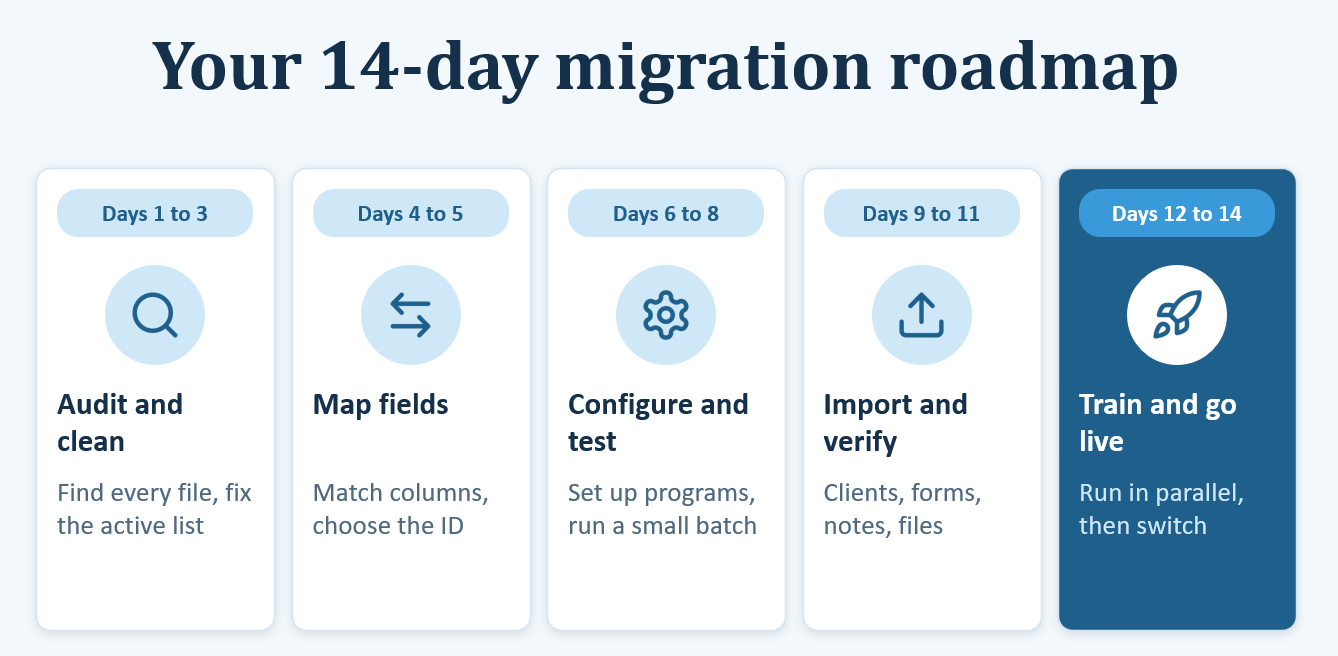
Days 1 to 3: Audit and clean.
List every place client information lives, including spreadsheets, shared drives, paper files, and email. Mark what you need in the new system, such as demographics, intake forms, case notes, program enrollment, referrals, and files. Start cleaning the active client list.
Days 4 to 5: Map your fields.
Compare your spreadsheet columns to the software’s fields and decide where each piece of data will live. Choose your unique identifier.
Days 6 to 8: Configure and test.
Set up programs, staff accounts, permissions, and forms first, so imported records have somewhere to land. Then run a test import with a small batch of five to ten clients.
Days 9 to 11: Run the full import and verify.
Import clients first, then past form submissions, then case notes, then files. Spot check records after each step.
Days 12 to 14: Train, run in parallel, and go live.
Walk staff through real workflows, use both systems side by side for a short stretch, then switch over and set the old spreadsheets to read-only.
Switch to an all-in-one case management platform.
👉 Try it Free - No credit card needed
How do you clean spreadsheet data before importing it?
Clean data is the biggest factor in a smooth import. Most failed rows trace back to a handful of fixable issues.
- Keep one row per client, with no merged cells and no notes typed in the margins.
- Split full names into separate first name and last name columns.
- Use one date format throughout, such as MM/DD/YYYY.
- Make dropdown-style values match the software exactly. If the system lists “Divorced or Separated,” spreadsheet that says “Separated” will not match.
- Remove duplicate clients and fill in required fields like first name and last name.
- Drop color-coding as a way of storing information. Color does not import, so convert it into a real column such as a status.
- Save an untouched backup copy before you change anything.

How do you map spreadsheet columns to software fields?
Data mapping means telling the new system which spreadsheet column belongs in which field. Download the import template, then line up your headers against it. Columns that have no matching field may need a custom field in the software, or they may not be worth importing at all.
The most important decision is your unique identifier. This is a value, usually a client ID or an email address, that tells the system which record is which. It prevents duplicates and lets you attach later imports, like forms and case notes, to the correct client. Pick it early and make sure every row has one.
Most import tools show a preview of your data beside the matched fields before you confirm. Use it. A swapped column is far easier to catch on screen than after 300 records are in.
💡All-in-one Case Management Software.
Everything in one place: clients, notes, forms, appointments, reports, and outcomes.
👉 Try it Free - No credit card needed
What are the best practices for a smooth client import?
- Start with a test batch. Five to ten clients is enough to reveal formatting problems without creating a cleanup job.
- Import in the right order. Clients come first, because forms, notes, and files attach to client records.
- Leave the template headers alone. Renaming or deleting columns is a common cause of mapping errors.
- Read the error report. A partial import is normal. If 2 of 3 rows succeed, fix the failed row and re-upload only that one. Typical causes are a wrong file type, an unrecognized value, or a missing required field.
- Spot check against the source. Open a few client profiles and compare them to the original spreadsheet.
- Never edit the original. Keep your backup untouched until the project is finished.
How do you bring in past forms, case notes, and files?
Once clients are in, history comes next. Past intake forms and assessments can be imported using the client ID, so each submission attaches to the correct profile. Some systems also let you choose whether to share the imported form with the client or update the client profile with the latest submission data, so decide that ahead of time.
Case notes work the same way. If your team writes SOAP notes (Subjective, Objective, Assessment, Plan), a template with a column for each section makes the import straightforward. Every note needs a date and a client identifier. Supporting documents such as consent forms and scanned records can be uploaded to each client’s file area. Name them consistently so staff can find them later.
How do you get staff to use the new system?
A clean import means little if people keep working in the old spreadsheet. Train on real tasks, such as opening an intake or writing a note, instead of walking through menus. Run both systems side by side for a few days so staff can see the data match. On go-live day, make the spreadsheets read-only so nothing new gets added there. Name one go-to person for questions and check in during the first two weeks.
Where can you start your migration?
If you are ready to move off spreadsheets, choose software that supports the imports you need. Case Management Hub is HIPAA-compliant case management software built for social workers and human services teams. It includes import templates for clients, past form submissions, and case notes, along with a field-matching step and an error report so problems get fixed before they spread. You can explore the software here or click below to start a free trial.
Switch to an all-in-one case management platform.
👉 Try it Free - No credit card needed
FAQ – Migrating Data from Excel to a Case Management System
Can an organization really migrate data in 14 days
Yes, when the scope is limited to active clients and the data is reasonably organized. Larger or messier datasets can take longer. The plan still works if you extend the cleaning phase.
Is Excel HIPAA compliant?
Typically, no spreadsheet program is compliant on its own. Compliance depends on storage, access controls, activity logging, and signed agreements with any vendor that handles client information.
What if my spreadsheet is a mess?
Clean it in stages. Start with active clients, fix the required fields first, and bring in the rest later.
Do I have to import old case notes?
Not always. Many nonprofits and social work agencies import recent notes and keep older ones in a secure archive.
How do I avoid duplicate client records?
Clean the source data first, then rely on a unique identifier such as client ID or email during every import.
All-in-One Case Management Software
Sign Up Today, Free. No credit card needed!
|
Do You Have a Team? |
||
Note: Content on this website (casemanagementhub.org) is copyrighted and protected under applicable copyright laws. Unauthorized reproduction, distribution, or use of any content from the website, without explicit written permission, is strictly prohibited. Read: Terms of Use.
Case Management Hub Disclaimer: Case Management Hub is not a health care agency and we do not refer social workers, medical workers, mental health specialists, or any professionals. This web site is provided for educational and informational purposes only and does not constitute providing medical advice or professional social, human services, and healthcare services. The information provided should not be used for diagnosing or treating a health problem or disease, and those seeking personal medical advice should consult with ... Read our full disclaimer here: Disclaimer.